Lighttpd 安装SSL证书 Lighttpd配置https证书教程

Lighttpd 安装SSL证书 Lighttpd配置https证书教程

Lighttpd 安装SSL证书
1.下载SSL证书并上传到服务器

yourdomain.com.crt     (服务器证书)

yourdomain.com.key     (私钥文件)

如果为空请将生成CSR时保存的私钥内容粘贴在文件中ca-bundle.crt          (根证书链)

合并证书

#Linux系统cat yourdomain.com.key yourdomain.com.crt  > www.yourdomain.com.pem
#Windows系统用notepad++把yourdomain.com.key和 yourdomain.com.crt 文件的内容合并另存为 www.yourdomain.com.pem

3.编辑Lighttpd配置文件

var.confdir = "/etc/lighttpd"
$SERVER["socket"] == "10.10.10.10:443" {
        ssl.engine = "enable"
        ssl.pemfile = var.confdir + "/www.yourdomain.com.pem"
        ssl.ca-file = var.confdir + "/ca-bundle.crt"
        ssl.use-sslv2 = "disable"
        ssl.use-sslv3 = "disable"
        ssl.honor-cipher-order = "enable"
        ssl.cipher-list = "EECDH+AESGCM:EDH+AESGCM:AES256+EECDH:AES256+EDH"
        ssl.use-compression = "disable"
        server.name = "www.yourdomain.com"
        server.document-root = "/home/wwwroot/"
}

4. 重启 Lighttpd

/etc/init.d/lighttpd restart
Nginx 安装SSL证书 Nginx配置https证书教程

Nginx 安装SSL证书 Nginx配置https证书教程

Nginx 安装SSL证书
1.下载SSL证书并上传到服务器管理SSL证书 -> 订单详细 -> 下载SSL证书 -> 选择 [Nginx] , 点击[下载SSL证书]
yourdomain.com.crt     (服务器证书+CA-BUNDLE)
yourdomain.com.key     (私钥文件)如果为空请将生成CSR时保存的私钥内容粘贴在文件中

2.查找并编辑nginx的配置文件

不同操作系统环境nginx配置文件位置不同. 仅列出几个常用的,具体请咨询服务器管理人员

/etc/nginx                              #centos 使用yum安装一般在这个位置
/etc/nginx/sites-available/example.com  #ubuntu 系统
/usr/local/nginx/conf/vhosts            #lnmp

3.在虚拟站点上配置SSL证书

假设把证书文件yourdomain.com.crt 和 yourdomain.com.crt 上传到服务器 /opt/ssl/ 目录默认规则 HTTP 请求使用TCP 80端口,  我们现在只是配置一个nginx虚拟站点使用TCP 443端口 (以Ubuntu为例修改配置文件)。

#请根据自己服务器实际配置文件路径修改
vi /etc/nginx/sites-available/example.com

我们不需要删除已有的站点配置,只需要增加nginx 配置SSL的必要参数

server {
        listen 80;
    #SSL 配置必要参数
        listen 443 ssl;
    #站点主机名
        server_name www.yourdomain.com;
    #SSL 配置必要参数
        ssl_protocols TLSv1.2 TLSv1.1 TLSv1;
        ssl_certificate /opt/ssl/yourdomain.com.crt;
        ssl_certificate_key /opt/ssl/yourdomain.com.key;
        ssl_prefer_server_ciphers on;
        
        #自动跳转到HTTPS (可选)
        if ($server_port = 80) {
                rewrite ^(.*)$ https://$host$1 permanent;
        }
       
        location / {
                root /home/yourdomain/;
                index index.php;
        }
}

注意事项

ssl_certificate  /  ssl_certificate_key 要填写自己上传证书的位置

4.重启nginx服务

#CentOS6 系统
service nginx restart
#CentOS7 系统 / Ubuntu
systemctl restart nginx  
#旧的Linux系统
/etc/init.d/nginx reload
#Windows nginx
cd nginx安装目录
nginx.exe -s reload

Glassfish 4.x 安装SSL证书 Glassfish 4.x 配置https证书

Glassfish 4.x 安装SSL证书

测试环境:WIN10  、 glassfish4

第一步: 下载 JKS格式(下载tomcat格式证书.) 注意:keystore密码要设置成:changeit

第二步:上传tomcat格式证书到 glassfish domain1/config目录。

C:/WorkSpace/glassfish4/glassfish/domains/domain1/config

第三步:打开domain.xml  , 搜索 keystore.jks , 应该在188行

<jvm-options>-Djavax.net.ssl.keyStore=${com.sun.aas.instanceRoot}/config/keytore.jks</jvm-options>

替换为

<jvm-options>-Djavax.net.ssl.keyStore=${com.sun.aas.instanceRoot}/config/yourdomain_tomcat.jks</jvm-options>

搜索http-listener-2,将 cert-nickname的名字更改为 1

<protocol security-enabled="true" name="http-listener-2">
<http default-virtual-server="server">
<file-cache></file-cache>
</http>
<ssl classname="com.sun.enterprise.security.ssl.GlassfishSSLImpl" cert-nickname="s1as"></ssl>
</protocol>

第四步:重启glassfish, 测试使用 https://127.0.0.1:8181 访问 , 线上环境使用你的域名访问.

Zijidelu lum 控制面板安装SSL证书

Zijidelu lum 控制面板安装SSL证书
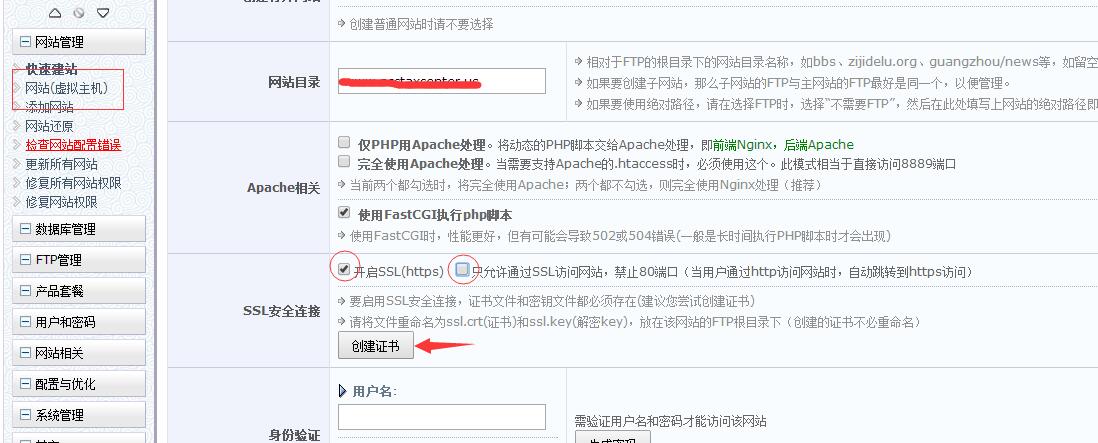
第一步: 登录控制面板,  选择要安装ssl的站点 , 点击编辑。
  点击【开启SSL】 ,如果想强制跳转到https,可以候选后面的选项。勾选后点击创建证书

图:Zijidelu lum 控制面板安装SSL证书

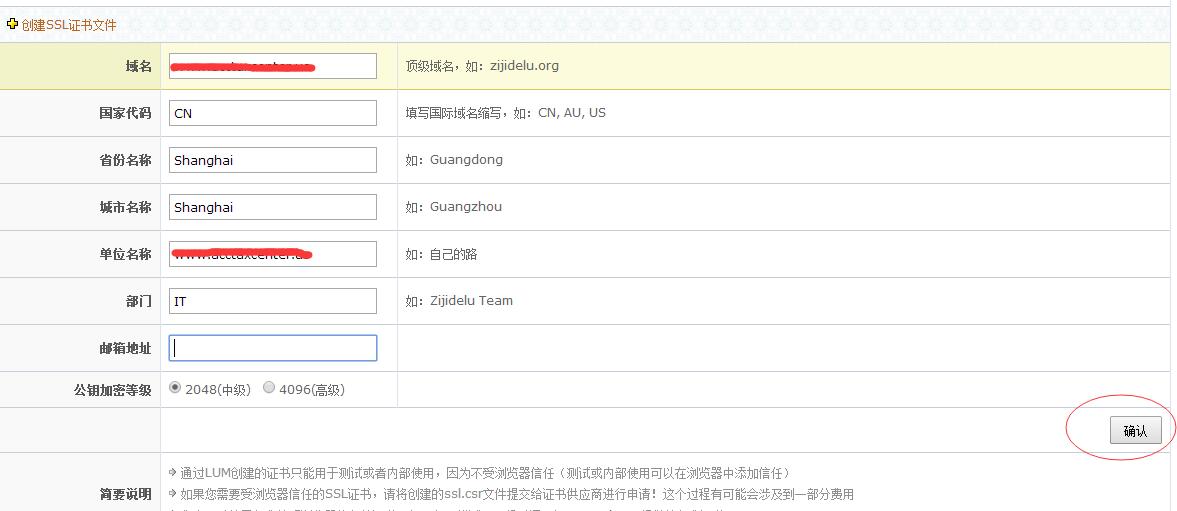
第二步: 填写证书信息 , 完成后确认。
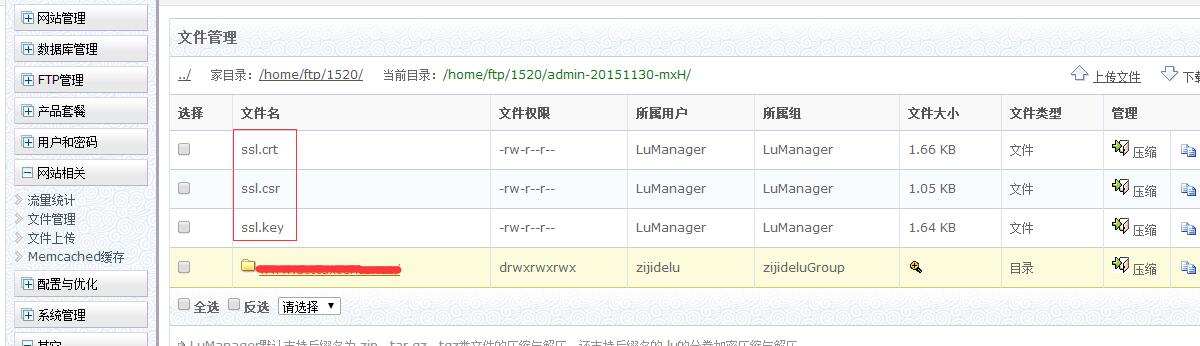
会在站点目录生成【 ssl.crt ssl.key ssl.csr】三个文件 , 此处需要注意【证书创建之后,别忘记点击上面的确定】

图:Zijidelu lum 控制面板安装SSL证书

第三步: 打开文件管理, 进入站点根目录, 找到刚刚生成的证书文件, ssl.crt 和 ssl.key先删除 。在我们这里购买的证书都有提供nginx格式, 里面有 server.crt 和 server.key , 把文件名更改为 ssl.crt 和 ssl.key , 然后使用文件管理工具上传到服务器。

图:Zijidelu lum 控制面板安装SSL证书

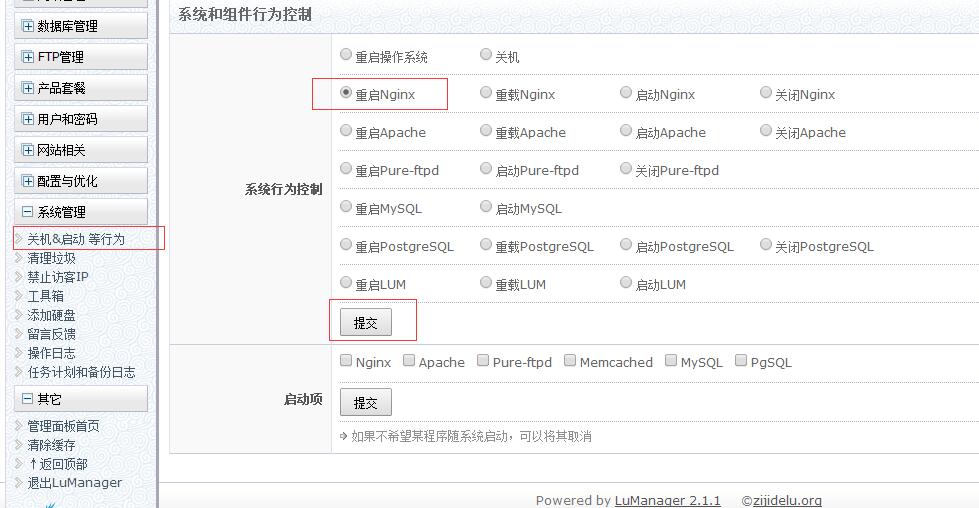
第四步: 重启服务使证书生效

图:Zijidelu lum 控制面板安装SSL证书


Exchange 2007/2010/2013 安装SSL证书

Exchange 2007/2010/2013 安装SSL证书

Exchange 2007/2010/2013 安装SSL证书

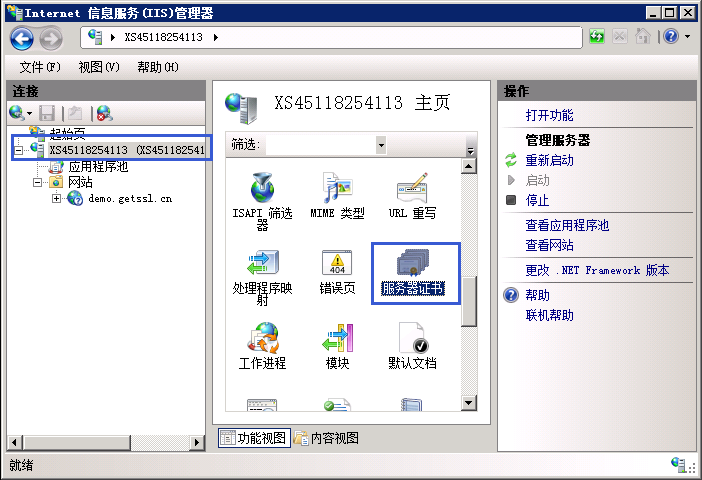
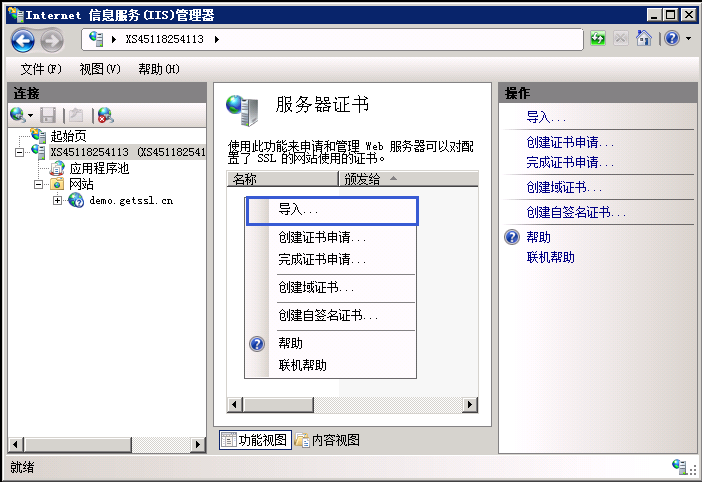
1. 登录服务器并且打开IIS管理器 , 左侧选择服务器主机名 , 右侧功能列表选择 服务器证书 双击打开。

2 . 右键属性,选择 导入

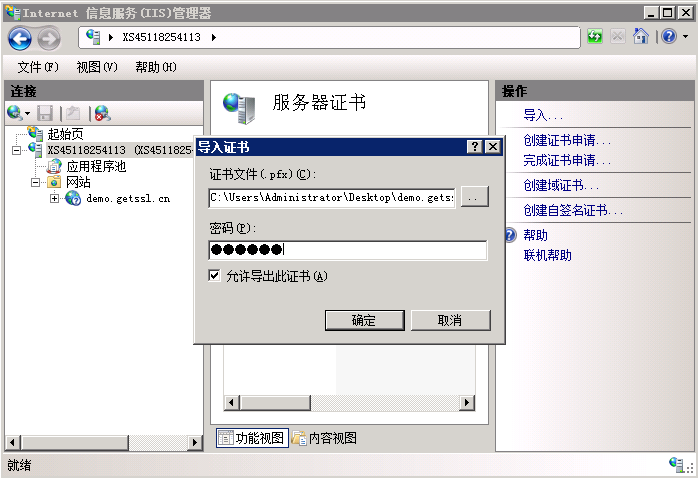
3. 选择上传的PFX格式证书,输入PFX文件密码

把新证书添加到Exchange Server,  打开PowerShell

[PS] C:> Get-ExchangeCertificate -DomainName www.yimenapp.cn
[PS] C:> Enable-ExchangeCertificate -ThumbPrint [thumbprint_id] -Services "SMTP,IMAP,POP,IIS"

## 登录

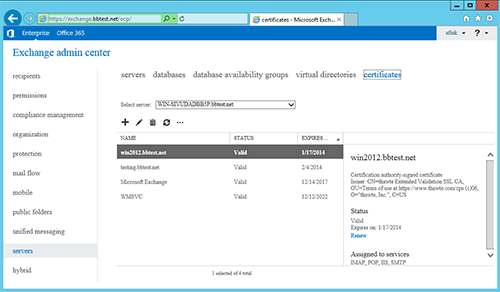
1 . 在服务器上登录ECP    https://localhost/ecp

2 . 选择 Servers   , 点击 Certificates , (列表中会显示刚刚导入的证书)

3. 选中导入的证书,点击 “编辑”

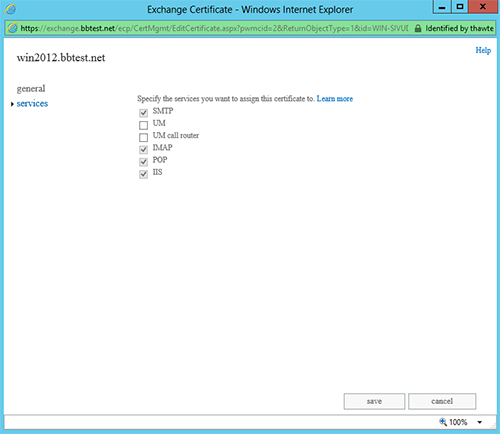
4. 选择 “services”

5. 选择要使用ssl的服务  , 一般勾选 “SMTP, IMAP, POP, IIS”

IBM Cognos安装ssl IBM Cognos配置HTTPS证书

IBM CognosThirdPartyCertificateTool 使用:
CMD 或者 SHELL 进入安装目录  , 工具所在位置 C:\Program Files\IBM\cognos\tm1_64\bin

1. 生成CSRThirdPartyCertificateTool.bat -c -s -d cn=Me,o=MyCompany,c=CA -r sign.csr -a RSA -p password复制sign.csr 的内容,在我们网站上提交CSR,申请证书。

2. 安装证书ThirdPartyCertificateTool.bat -E -s -r yourdomain.com.cer -p password导入申请下来的域名, -p 密码 是生成CSR所填写的密码

3. 安装CA证书, (可以下载apache格式的, yourdomain.com.ca-bundle 或者 下载页面  复制根证书内容另存为 ca.cer)ThirdPartyCertificateTool.bat -E -T -r ca.cer -p password

Vesta CP 安装SSL

Vesta CP 安装SSL

Vesta CP 安装SSL
Vesta使用apache格式证书,在会员中心下载。
1. 登录Vesta , 打开【网站管理】
2. 选择要安装SSL证书的站点,点击【修改】
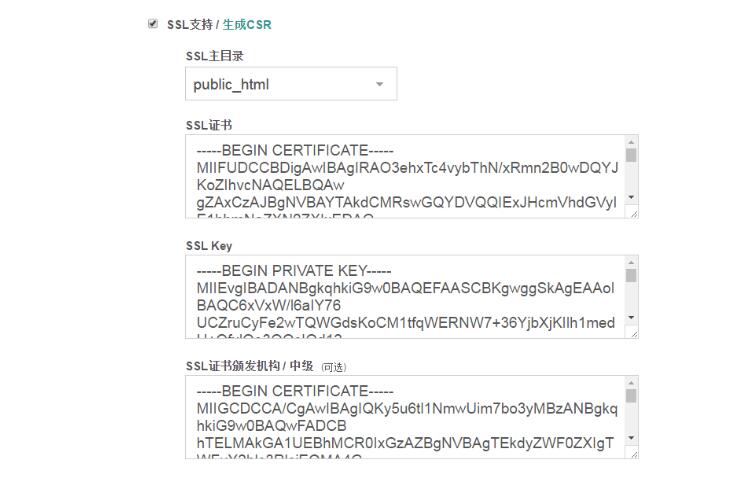
3. 添加SSL证书,选择【SSL支持】.

图:Vesta CP 安装SSL
SSL证书        对应  yourdomain.crt
SSL key        对应 yourdomain.key
SSL 中级证书   对应  ca-bundle.crt

Vesta CP 安装SSL Vesta CP 面板配置https证书安装教程

Vesta CP 安装SSL Vesta 配置https证书安装教程

Vesta CP 安装SSL

Vesta使用apache格式证书,在会员中心下载。

1. 登录Vesta , 打开【网站管理】

2. 选择要安装SSL证书的站点,点击【修改】

3. 添加SSL证书,选择【SSL支持】.

SSL证书        对应  yourdomain.crt
SSL key        对应 yourdomain.key
SSL 中级证书   对应  ca-bundle.crt

ExpressJS 安装SSL证书,ExpressJS 环境配置https证书教程

ExpressJS 安装SSL证书,ExpressJS 环境配置https证书教程

ExpressJS 安装ssl需要对编码有点基础,购买证书后,下载nginx格式的证书 (解压后包含2个文件,  key 私钥, cert 域名证书+根证书)
 //Test : curl -k https://localhost/

var express = require('express');
var https = require('https');
var http = require('http'); 

const fs = require('fs');

const options = {
  key: fs.readFileSync('path/yourdomain.com.key'),
  cert: fs.readFileSync('path/yourdomain.com.crt')
}; 

var app = express();


http.createServer(app).listen(80);
https.createServer(options, app).listen(443); 

Nginx 自动跳转到HTTPS Nginx设置http自动跳转https SSL配置

Nginx 自动跳转到HTTPS Nginx设置http自动跳转https SSL配置

方法一

rewrite ^(.*)$ https://$host$1 permanent;

方法二

适用于 80端口和443 配置在同一个 server{}内

if ($server_port = 80) {
      rewrite ^(.*)$ https://$host$1 permanent;
}

其他情况, 站点绑定很多域名,只让某个域名跳转:

set $redirect_https 1;
if ($server_port = 80) {
   set $redirect_https "${redirect_https}2";
}
if ($http_host = 'www.yourdomain.com') {
   set $redirect_https "${redirect_https}3";
}
if ($http_host = 'yourdomain.com') {
   set $redirect_https "${redirect_https}3";
}

if ($redirect_https = "123") {
rewrite ^(.*)$ https://$host$1 permanent;
}

示例

server {
        listen       80;
        server_name  www.getssl.cc;
        rewrite ^ https://$http_host$request_uri? permanent;
}

server {
        listen 443;
        ssl on;
        ssl_certificate /etc/ssl/cacert.pem;
        ssl_certificate_key /etc/ssl/privkey.pem;
        server_name www.yourdomain.com;  

        
        server_tokens off;

        location / {
          
                fastcgi_param   HTTPS               on;
                fastcgi_param   HTTP_SCHEME         https;

        }
        
}

Nginx安装SSL证书 Nginx配置https证书

Nginx安装SSL证书 Nginx配置https证书
首先拿到Nginx服务器证书
yourdomain.com.crt     (服务器证书)
yourdomain.com.key   (私钥文件)如果为空请将生成CSR时保存的私钥内容粘贴在文件中

环境检测,检测命令如下(测试nginx是否支持SSL)

nginx -V

如果有显示 –with-http_ssl_module 表示已编译openssl,支持安装ssl;

如果没有安装请下载nginx源码重新编译;

./configure --with-http_stub_status_module --with-http_ssl_module
make && make install

配置Nginx

server {
 listen 80;
 listen 443 ssl;
 server_name www.yourdomain.com;

 ssl_protocols TLSv1.2 TLSv1.1 TLSv1;
 ssl_certificate /etc/ssl/yourdomain.com.crt;
 ssl_certificate_key /etc/ssl/yourdomain.com.key;
 ssl_prefer_server_ciphers on;
 
 #自动跳转到HTTPS (可选)
 if ($server_port = 80) {
 rewrite ^(.*)$ https://$host$1 permanent;
 }
 
 location / {
 root /home/yourdomain/;
 index index.php;
 }
}

请将域名修改为您自己的

以上配置仅供参考,其他参数请根据生产环境需要添加。安装后重启nginx使其生效

centos6
service nginx restart
centos7
systemctl restart nginx

Apache自动跳转到 HTTPS Apache设置http跳转https

Apache自动跳转到 HTTPS Apache设置http跳转https

网站根目录新建 .htaccess

RewriteEngine On
RewriteCond %{SERVER_PORT} 80
RewriteRule ^(.*)$ https://%{HTTP_HOST}/$1 [R,L]

站点绑定多个域名,只允许www.example.com 跳转

RewriteEngine On
RewriteCond %{SERVER_PORT} 80
RewriteCond %{HTTP_HOST} ^example.com [NC,OR]
RewriteCond %{HTTP_HOST} ^www.example.com [NC]
RewriteRule ^(.*)$ https://%{HTTP_HOST}/$1 [R,L]

******把网址更改为自己的******

高级用法 (可选)

RewriteEngine on

# 强制HTTPS
RewriteCond %{HTTPS} !=on [OR]
RewriteCond %{SERVER_PORT} 80
# 某些页面强制
RewriteCond %{REQUEST_URI} ^something_secure [OR]
RewriteCond %{REQUEST_URI} ^something_else_secure
RewriteRule .* https://%{SERVER_NAME}%{REQUEST_URI} [R=301,L]
# 强制HTTP
RewriteCond %{HTTPS} =on [OR]
RewriteCond %{SERVER_PORT} 443
# 某些页面强制
RewriteCond %{REQUEST_URI} ^something_public [OR]
RewriteCond %{REQUEST_URI} ^something_else_public
RewriteRule .* http://%{SERVER_NAME}%{REQUEST_URI} [R=301,L]

Apache + mod_ssl.so APACHE安装SSL证书 https配置安装教程

Apache + mod_ssl.so APACHE安装SSL证书 https配置安装教程
1.需要有Apache服务器环境的SSL证书

yourdomain.com.crt     (服务器证书)
yourdomain.com.key   (私钥文件)如果为空请将生成CSR时保存的私钥内容粘贴在文件中
yourdomain.com.ca-bundle  (根证书链)

首要条件就是 apache 已经安装了 mod_ssl.so 模块 。
检测方法使用以下命令:

httpd -M | grep mod_ssl

如果有显示 mod_ssl.so 表示已经安装了apache模块。
CentOS/Redhat安装mod_ssl.so

yum install mod_ssl

Debian/Ubuntu

sudo a2enmod ssl
sudo service apache2 restart

Apache SSL配置

Listen 443  (如果配置已经存在就不要加)
LoadModule ssl_module modules/mod_ssl.so (如果配置已经存在就不要加)
NameVirtualHost *:443 (非必须,配置多个SSL站点会需要)

<VirtualHost *:443>
ServerName www.getssl.cn
ServerAlias getssl.cn
DocumentRoot /var/www/html
SSLEngine on
SSLProtocol all -SSLv2 -SSLv3
SSLCertificateFile /etc/ssl/yourdomain.com.crt 
SSLCertificateKeyFile /etc/ssl/yourdomain.com.key 
SSLCertificateChainFile /etc/ssl/yourdomain.com.ca-bundle
</VirtualHost>

以上只是SSL配置范例,尽量不要直接应用于生产环境,请根据80端口的站点配置修改。
证书可以放在其他位置,没有强制要求
ServerName 和 ServerAlias 需要修改

配置完成重启Apache使其生效

service httpd restart

IIS7 IIS8 设置http自动跳转到HTTPS

IIS7 IIS8 设置http自动跳转到HTTPS

IIS7需要先确认是否安装 “URL 重写” 或者 “URL Rewrite” 模块 , 如果您已经安装可以跳过

“URL重写” 模块下载地址

微软下载地址(64位):http://www.microsoft.com/zh-cn/download/details.aspx?id=7435
微软下载地址(32位):http://www.microsoft.com/zh-cn/download/details.aspx?id=5747

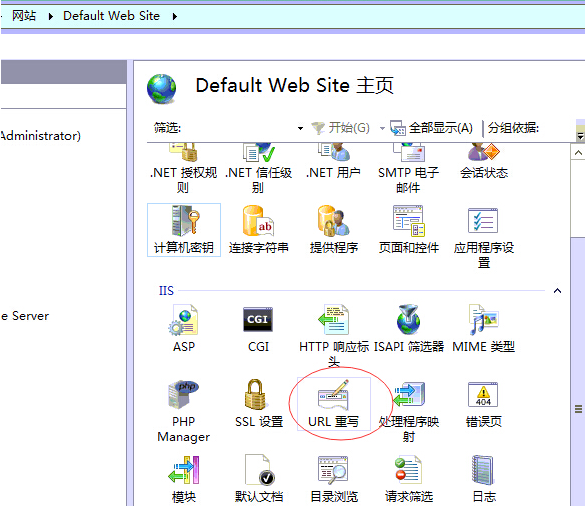
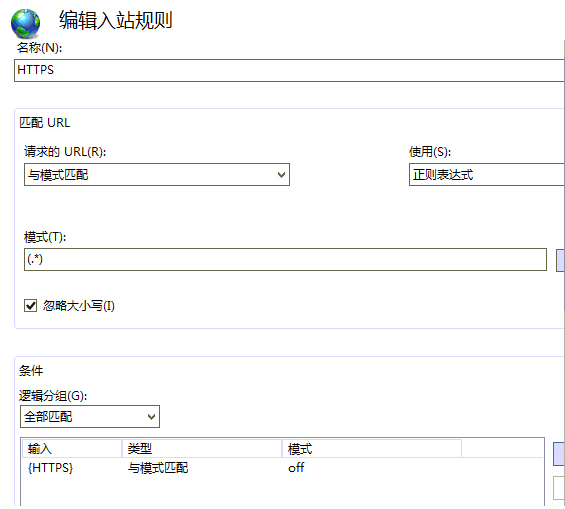
1. 选择站点,  “URL 重写”,如果安装的是英文版的 应该是【Url Rewrite】

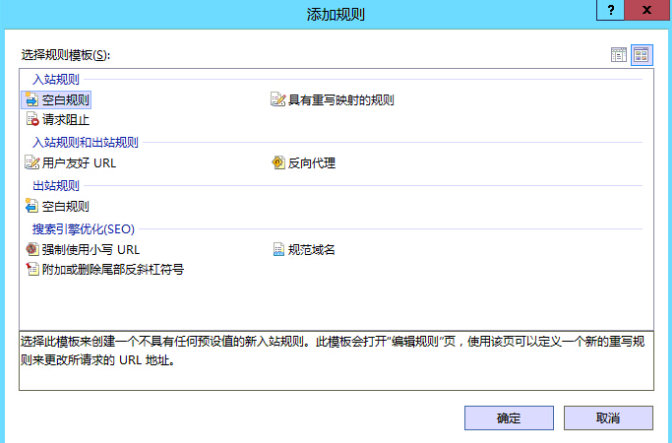
2.添加 “ 空白规则”

3.添加规则
名称 : HTTPS
匹配URL 模式: (.*)
添加条件:    条件: {HTTPS}  模式: off

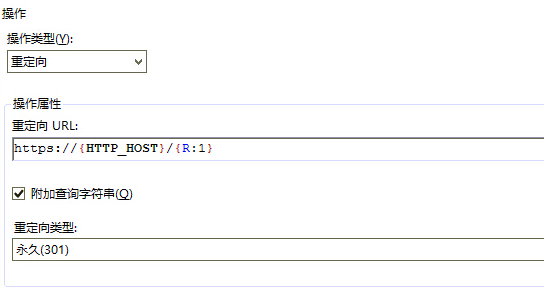
操作类型选择:重定向
重定向URL: https://{HTTP_HOST}/{R:1}

设置301跳转

之后点击保存

当然也可以自己直接编辑网站配置文件web.config,相关代码参考

<?xml version="1.0" encoding="UTF-8"?>
<configuration>
  <system.webServer>
    <rewrite>
      <rules>
        <rule name="HTTP to HTTPS redirect" stopProcessing="true">
                  <match url="(.*)" />
                        <conditions>
                          <add input="{HTTPS}" pattern="off" ignoreCase="true" />
                        </conditions>
                  <action type="Redirect" redirectType="Found" url="https://{HTTP_HOST}/{R:1}" />
                </rule>
      </rules>
    </rewrite>
  </system.webServer>
</configuration>

windows服务器IIS6 设置301跳转到HTTPS

windows服务器IIS6 设置301跳转到HTTPS
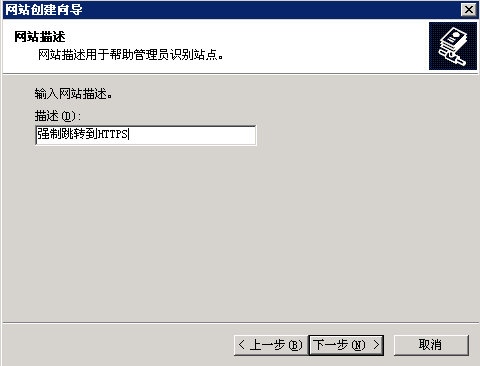
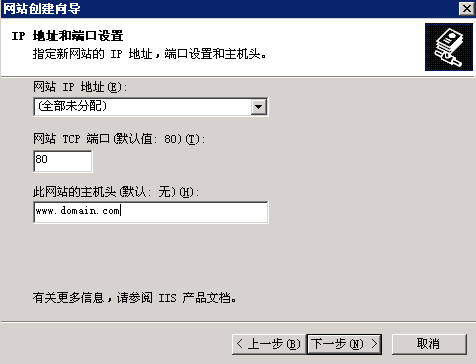
1. 新建一个空站点,网站的主机头填写 要跳转的域名. 端口使用80

描述随便写

2.网站根目录随便新建一个空目录指定  d:/wwwroot/301

3.站点新建完成,右键 属性设置。
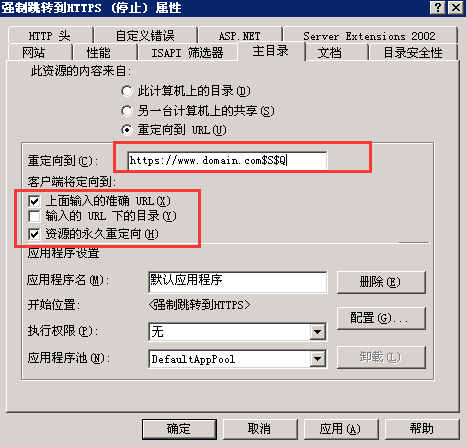
重定向到:   https://www.domain.com$S$Q           domain.com修改成要跳转的域名

4.绑定证书的站点删掉 www.domain.com   80端口的域名绑定

windows服务器IIS6 自动跳转到HTTPS配置教程

windows服务器IIS6 自动跳转到HTTPS配置教程

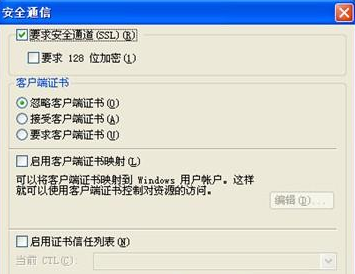
1. IIS6中,站点属性-》目录安全性-》编辑中把“要求安全通道(SSL)”勾选上即可。

2. 打开自己网站根目录, 例如 d:webroot,  在根目录新建一个名为  https.htm 的文件,内容如下:

<html>
 <head><title>Redirecting...</title></head>
 <script language="JavaScript">
 function redirectHttpToHttps()
 {
     var  httpURL= window.location.hostname + window.location.pathname +  window.location.search;
     var httpsURL=  "https://" + httpURL;
     window.location  = httpsURL;
 }
 redirectHttpToHttps();
 </script>
 <body>
 </body>
 </html>


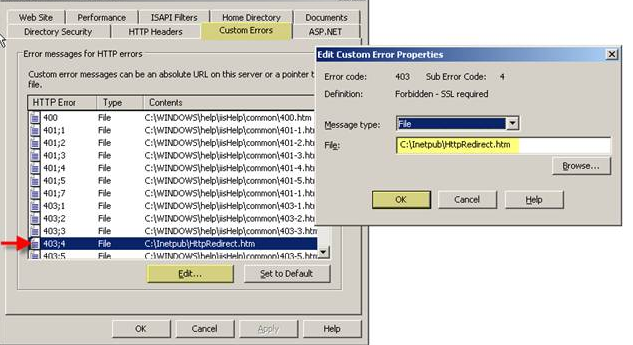
3.IIS6中, 站点属性 -》 自定义错误 -》选择 403.4 -》修改文件路径为  d:/webroot/https.htm

windows服务器IIS6 多域名证书安装方法 修改SecureBindings

windows服务器IIS6 多域名证书安装方法
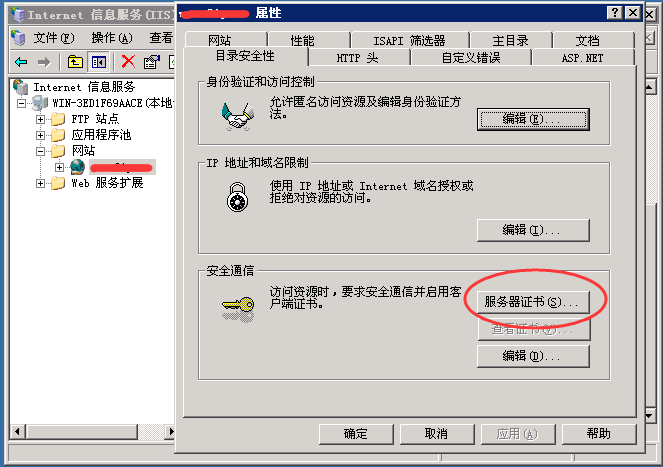
1.选择站点 , 右键 “ 属性” 。  点击 “ 目录安全” 选项卡。 点击“ 服务器证书”。

2.点击【服务器证书】进入证书配置页面
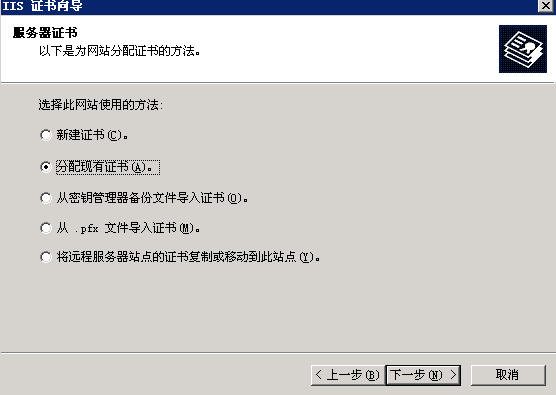
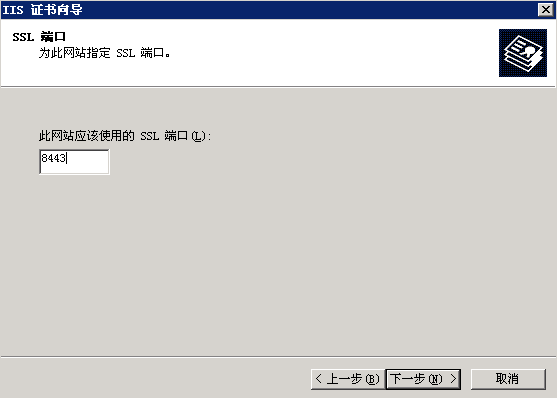
分配导入的证书到其他站点, 需要注意的是端口不要用443, 可以使用8443 , 如果有第三个站点 8444, 依此类推。
温馨提示:由于之前已经安装了一个SSL证书,并使用了443端口,所以这里的端口就要更换一下

选择【分配现有证书】

点击下一步完成端口的分配。

3.再完成多域名SSL证书的端口指定之后,还需要去系统里面配置下
运行【 CMD】  输入 【iisreset /STOP】
修改配置文件,编辑【 C:WINDOWSsystem32inetsrvMetaBase.xml 】
搜索 【:443 】
     将 SecureBindings=”:443:”  
改为  SecureBindings=”:443:www.youname.com”其他站点照同样的方式修改。

由于刚才增加的端口是8443,这里修改为443
【SecureBindings=”:8443:”】 注意把端口改成443
     将 SecureBindings=”:8443:”  
改为  SecureBindings=”:443:www.youname.com”其他站点照同样的方式修改。

最后启动IIS     服务iisreset /start